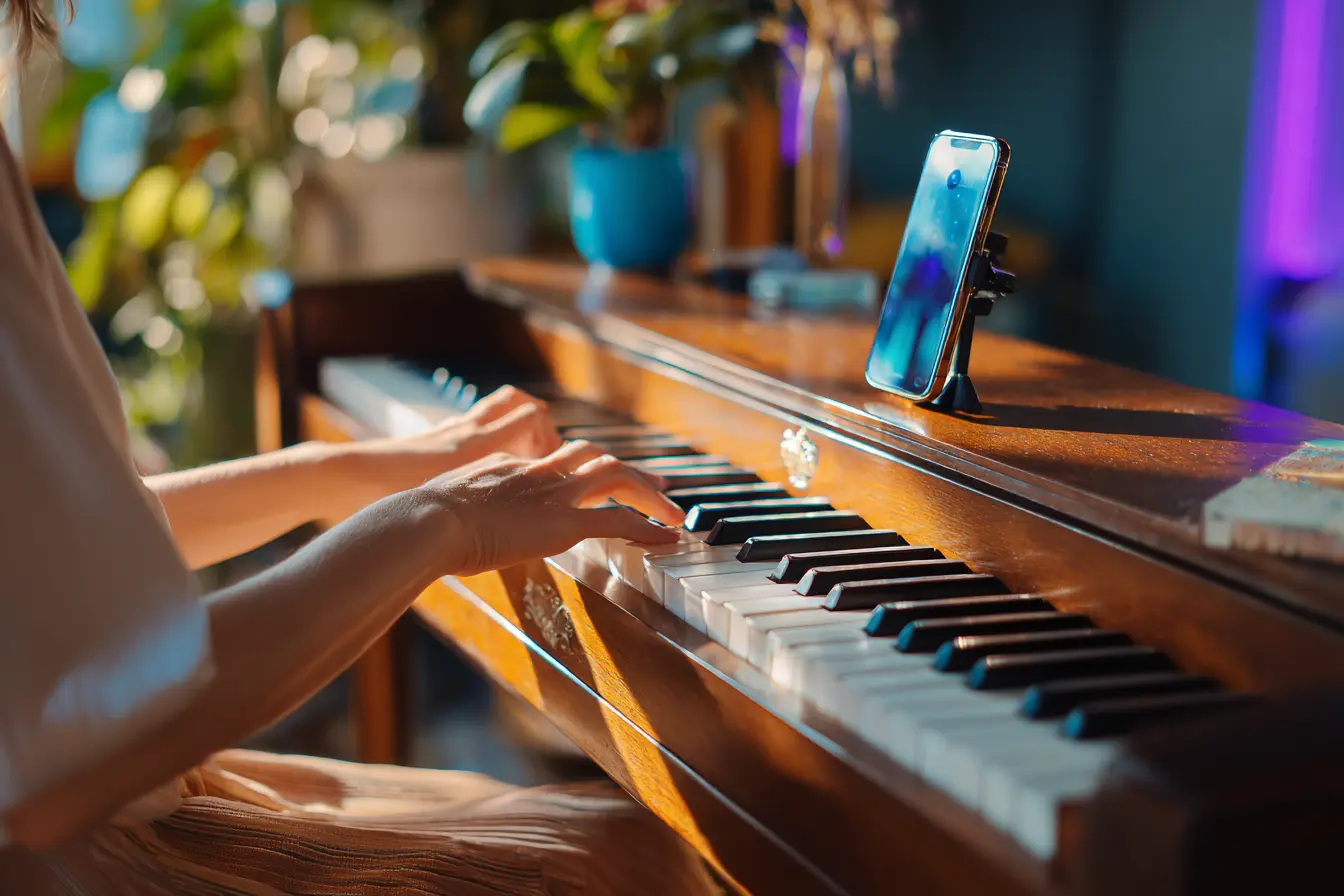
The quickest way to record yourself playing piano on an iPhone depends on what you are playing on. On a real acoustic piano, the free Voice Memos app is the fastest option. On a digital piano, plug it into GarageBand for the cleanest sound. If you are playing on the phone or iPad screen itself, you need an app like Piano Aura that makes the sound and records it in the same moment, which also sidesteps room noise completely because no microphone is involved. If you want a dedicated mic app for a real piano, Dolby On (free, with automatic noise reduction) and BandLab (free, multitrack, handy for vocals) are the two worth trying, and both also run on Android. Here is what each one is actually like.
You sit down, mess around for a few minutes, and then it happens. You play something that actually sounds good. And now you want to keep it.
The trouble with good takes is that they're slippery. You try to play it again and it's already gone, replaced by a worse version you'll be annoyed at for the rest of the day. Your iPhone can catch these moments before they escape. There are a few ways to do it, and they are not equally good, so here is what each one is actually like.
If you're playing a real piano or keyboard
The fastest option is already on your phone: Voice Memos. One tap and it's recording through the built-in mic. That mic is the catch. It hears the room too, so you get your playing plus the creak of the bench, the traffic outside, and whoever is doing dishes in the next room. For a quick memo of an idea, that's fine. For something you want to send to a person, set the phone close to the piano but not on top of it (the body vibrates and you'll record a low rumble), and turn off anything noisy nearby.
If you play a digital piano with a USB or line output, you can do much better. Plug it into the iPhone with a camera adapter or a small audio interface and record straight into GarageBand. More setup, far cleaner sound, no room in the recording at all.
Which app records piano best through the phone's mic?
If the sound is coming out of a real piano, the app matters less than the room (more on that below), but the choice is not nothing. These are the free options worth your time, and for this job Piano Aura is not one of them, because it records the keyboard on your screen rather than a microphone.
Voice Memos is the default for a reason. It is already on your iPhone and starts in one tap. Two settings most people never find make a real difference. In the recording's edit view, the magic-wand button (Enhance Recording) cuts room noise and echo. And in the Settings app, under Voice Memos, Audio Quality can be switched from Compressed to Lossless, which is the answer if you want an uncompressed archive of an acoustic take.
Dolby On is the one to try if Voice Memos sounds thin. It is free on iPhone and Android and applies noise reduction, automatic EQ and volume levelling as it records, so a take made in an ordinary living room comes out sounding more finished. The trade-off is that it makes processing decisions for you, which some players love and some find too polished for a piano.
BandLab is free on iPhone and Android and is a full multitrack studio. It is the pick if you want to record piano and then sing over it, or layer a second part, from a phone.
GarageBand is the iPhone-only option for the same multitrack job, and the best one once you plug in an audio interface or a digital piano's output.
If you are on Android, Dolby On and BandLab are the straight answer to "what should I use". Piano Aura is iOS only.
If you're playing on the phone itself
Here's where Voice Memos stops helping. If there's no piano in the room and you're playing on a screen keyboard, the mic has nothing acoustic to capture, and screen taps aren't music. You need an app that makes the sound and records it at the same moment.
That's the reason we built Piano Aura the way we did. You open the Freestyle keyboard, pick an instrument, hit record, and play. The app captures the audio directly, so there's no room noise and no extra cables. When you stop, you can name the take, keep it, and send it to someone or export the audio file.
The specifics are worth knowing before you lean on any app for this. A single take can run up to 30 minutes. You can keep up to 99 saved takes on the device, renaming or deleting them from the My Recordings list. And they export as M4A audio files, the same format Voice Memos uses by default, so whatever you send opens on the other end without a converter.
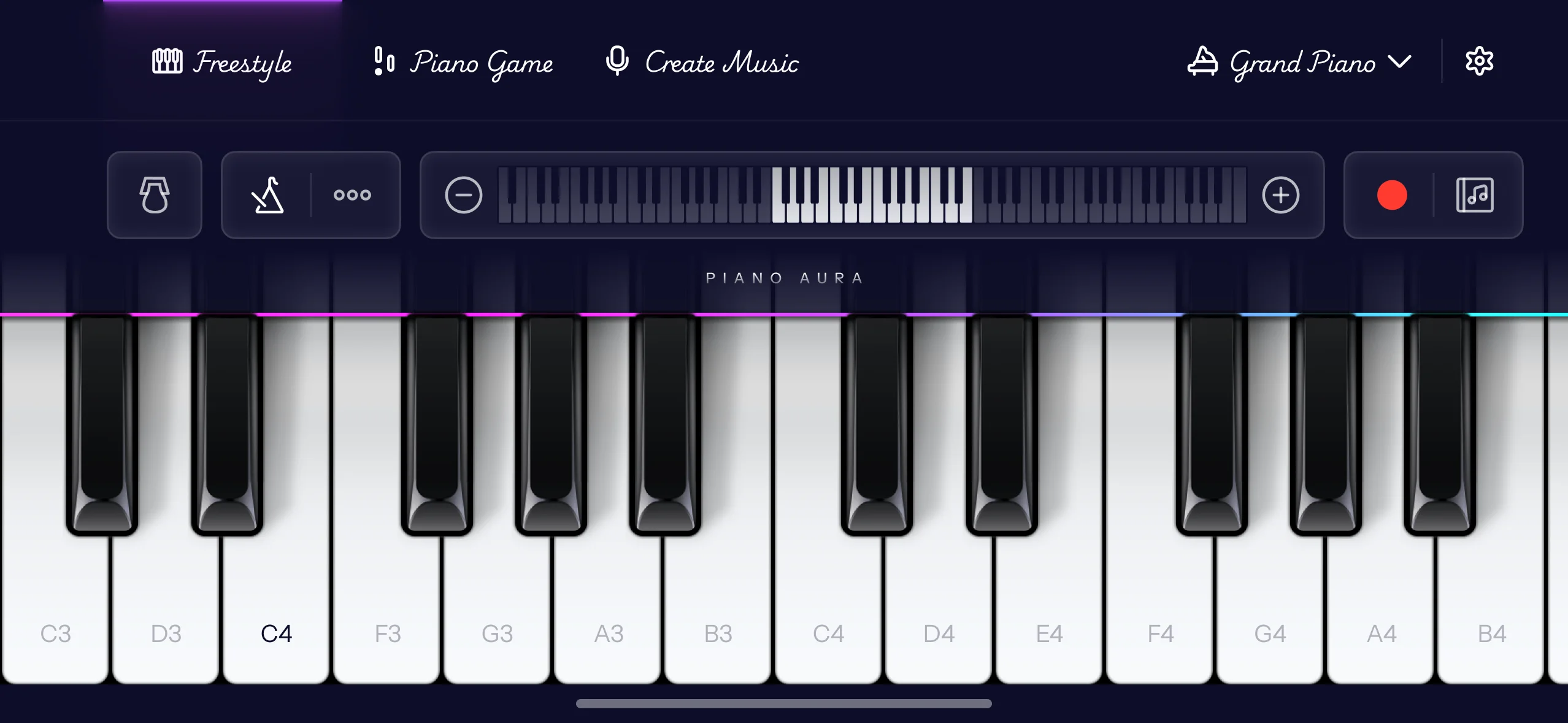
There's a deep library of instruments to play and record with, and it keeps growing, with new sounds added every week, from grand and electric pianos to organs, a toy piano, and a xylophone. A few are reserved for the paid plan. If you want a click track while you record, the metronome is one of the premium features, and it helps more than you'd expect once you're trying to stay in time.
Build it into a song, not just a clip
Recording one take is the start. If you want to turn that idea into something fuller, Piano Aura has a separate Create Music mode for stacking it up.
You work in layers. Lay down a left-hand part, then record a melody over it on a different instrument, then add another line on top. Each layer is its own track, so you can play a part, listen back, and re-record just that one if it didn't land. Your notes show up as blocks on a timeline, and you can grab any of them to move, resize, duplicate, or delete, so a single wrong note is never a reason to start the whole thing over.
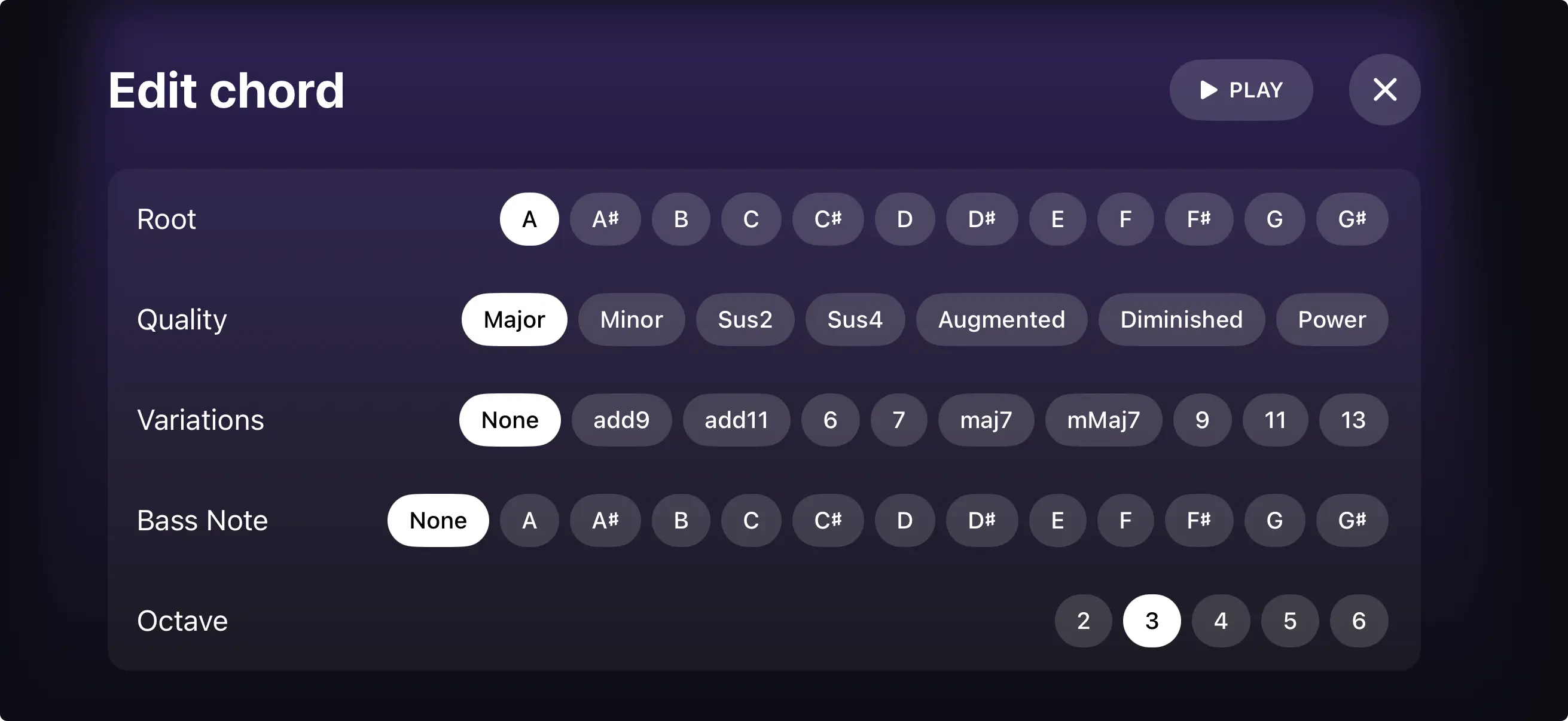
If chords are the part that slows you down, the Chord Builder handles the hard bit. You pick a root note and a quality, major, minor, a seventh, a sus chord, whatever you're reaching for, and it builds the shape for you. You can hear it before you commit, drop a bass note underneath for a slash chord, and move it up or down an octave. That's a real chord progression without having to know every voicing by heart.
When it sounds right, name it, choose a cover, and share. Create Music turns your song into a video with your cover art on it, so it travels cleanly through Messages, AirDrop, or anywhere else, and whoever you send it to just taps play.
How do you reduce background noise when recording piano on a phone?
This is the single biggest thing separating a phone recording that sounds amateur from one that doesn't, and most of the fix is free.
Record in a soft room. Curtains, a rug, a sofa, even a bed in the room all absorb the hard reflections that make phone recordings sound thin and boxy. A tiled kitchen is the worst possible place; a carpeted bedroom is one of the best.
Get the phone closer to the piano, but never on it. The closer the mic is to the strings, the more of your playing and the less of the room it picks up. Resting the phone on the piano body is the classic mistake: the whole instrument vibrates and you record a low rumble under everything.
Kill the obvious offenders before you start. Fridges, fans, air conditioning, and open windows all end up in the take, and no amount of editing removes them cleanly. Turn on Airplane Mode so a notification doesn't land in the middle of your best run.
Watch your levels so the loud parts don't clip. Clipping is that harsh crackle when a note is too loud for the mic, and unlike room noise it is permanently baked in. If your fortissimo sounds crunchy, move the phone back a little and play the take again.
And if you're playing on the screen rather than a real piano, none of this applies. The app captures the audio internally, so there is no mic, no room, and no noise floor at all. That is the honest advantage of recording in-app.